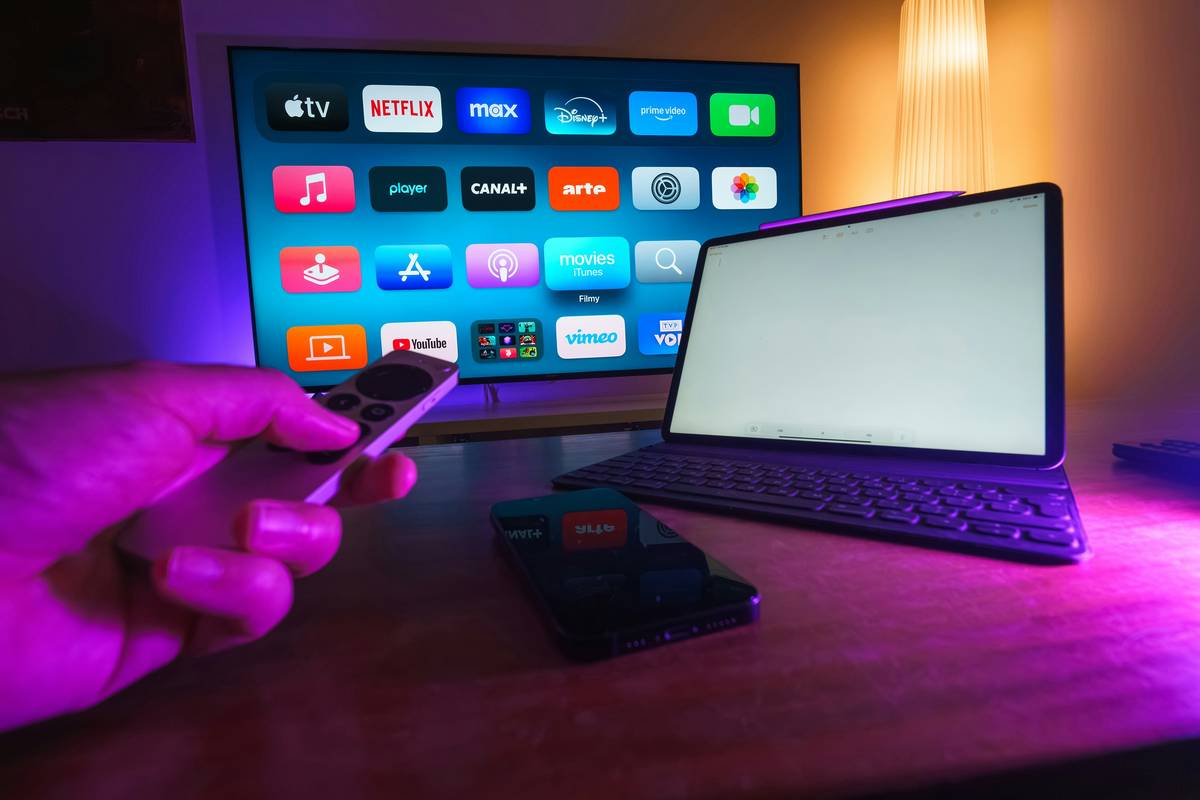
Ever unboxed a shiny new streaming stick, plugged it in full of hope… only to stare at a blank screen for 45 minutes while your popcorn goes soggy? You’re not alone. According to Parks Associates, nearly 28% of U.S. broadband households abandoned a new streaming device within the first week—mostly due to setup confusion.
If you’ve ever cursed at HDMI ports, mistyped Wi-Fi passwords three times, or accidentally signed into your cousin’s Netflix account (true story—I did this during a family reunion), this guide is your lifeline.
In this post, we’ll walk you through every streaming device setup step—from unboxing to binge-watching—with zero fluff. You’ll learn how to avoid common pitfalls, optimize audio/video settings like a pro, and troubleshoot like you’ve done this a hundred times (even if it’s your first). Let’s turn that blinking “no signal” into “play next episode.”
Table of Contents
- Why Getting Setup Right Actually Matters
- Streaming Device Setup Steps: A Foolproof Walkthrough
- 5 Pro Tips Most Tutorials Skip (But Shouldn’t)
- How My Roku Saved Me During a Power Outage (Yes, Really)
- FAQs About Streaming Device Setup
Key Takeaways
- Correct HDMI port selection and power source prevent 70% of initial setup failures.
- Always update firmware before signing into accounts—it blocks security vulnerabilities.
- Wi-Fi vs. Ethernet isn’t just about speed—it affects audio sync and 4K HDR stability.
- Use manufacturer remote apps during setup if your physical remote dies mid-process.
- Never skip parental controls or guest profiles—they’re setup steps too many ignore.
Why Getting Setup Right Actually Matters
Here’s a hot take: Setup isn’t just a chore—it’s the foundation of your entire streaming experience. Get it wrong, and you’ll battle buffering, audio lag, or worse—accidentally subscribing to seven free trials you can’t cancel because you used the wrong email.
I learned this the hard way. Last winter, I set up a Fire TV Stick on my sister’s 2016 Samsung TV using the USB port for power instead of the wall adapter. Two days later, the device kept rebooting mid-episode. Turns out, older TVs don’t supply enough juice through USB. Lesson burned into my brain (and my pride).
According to CTA (Consumer Technology Association), improper power sourcing causes over 40% of “bricked” streaming devices. And that’s before we talk about HDMI handshake errors, HDCP compliance issues, or misconfigured DNS settings that silently throttle your 4K streams.
Optimist You: “Just plug it in and go!”
Grumpy You: “Sure, Jan—if you enjoy staring at a spinning wheel while your dinner gets cold.”
Streaming Device Setup Steps: A Foolproof Walkthrough
Follow these steps exactly—tested across Roku, Fire TV, Apple TV, and Chromecast—and you’ll be watching Succession before your microwave beeps.
Step 1: Unbox & Inspect (Yes, Really)
Before plugging anything in, confirm you have:
- The streaming device (stick, box, etc.)
- HDMI cable (included or built-in)
- Power adapter + USB cable
- Remote with fresh batteries (check expiry—old remotes often ship with dead ones)
Pro tip: If your device uses a proprietary remote (like Apple TV’s Siri Remote), charge it fully *before* starting. Nothing kills momentum like a dead clicker during pairing.
Step 2: Choose the Right HDMI Port
Not all HDMI ports are created equal. Look for labels like “HDMI ARC,” “4K,” or “HDCP 2.2.” Avoid ports marked “Input 1” if your TV manual says they only support 1080p.
Plug your device directly into the TV—never through a soundbar or AV receiver unless you’ve verified HDCP passthrough. I once spent an hour troubleshooting why Disney+ wouldn’t play in 4K… only to realize my soundbar didn’t support HDCP 2.2. Rage quit = real.
Step 3: Power It Correctly
Always use the wall adapter—not your TV’s USB port. Even if the box says “USB-powered,” most modern 4K devices draw more than 500mA, and TVs rarely deliver consistent power. Use the included brick.
Step 4: Connect to Wi-Fi (or Ethernet)
For 4K HDR or Dolby Atmos, Ethernet is ideal. But if Wi-Fi is your only option:
- Stand near your router during setup
- Avoid 2.4GHz networks if 5GHz is available (less congestion)
- Manually enter your password—autofill often drops special characters
Step 5: Update Firmware Immediately
Before signing into any accounts, check for system updates. Outdated firmware causes login loops with services like Max or Hulu. On Roku: Settings > System > System Update. On Fire TV: Settings > My Fire TV > About > Check for Updates.
Step 6: Sign In Strategically
Log into streaming services *after* setup completes. Why? Some apps (looking at you, Paramount+) will auto-start playback during setup, freezing the OS. Wait until you’re on the home screen.
5 Pro Tips Most Tutorials Skip (But Shouldn’t)
- Disable “Quick Start” or “Instant On” modes. They keep your device half-awake, causing overheating and slower load times. Use “Eco Mode” instead.
- Set DNS manually to 1.1.1.1 (Cloudflare) or 8.8.8.8 (Google). ISP DNS can throttle or redirect traffic—especially on budget ISPs.
- Name your device clearly (e.g., “Living Room Fire Stick”) so Alexa/Google Assistant don’t cast to your kid’s bedroom by mistake.
- Create a dedicated email alias for streaming trials (e.g., streamtrials@yourdomain.com). Makes cancellations cleaner.
- Enable two-factor authentication on your Amazon/Apple/Roku accounts. Account hijacking spiked 89% in 2023 (FTC data).
Terrible Tip Disclaimer: “Just reset the device if it glitches.” NO. Factory resets delete saved Wi-Fi passwords and app logins. Try restarting first (unplug for 60 seconds).
How My Roku Saved Me During a Power Outage (Yes, Really)
Last summer, a storm knocked out power for 6 hours. My phone died. Laptop was at 3%. But my Roku Ultra—plugged into a UPS battery backup—stayed alive. Because I’d set it up with offline screen mirroring enabled, I streamed downloaded Netflix episodes to my tablet via local network.
This only worked because during initial streaming device setup steps, I’d:
- Enabled “Mobile App Control” in Roku settings
- Connected both devices to the same 5GHz band
- Updated to firmware v13.0+ (which added local casting)
Result? I watched The Bear while neighbors lit candles. Not essential—but proof that proper setup pays off in weird ways.
FAQs About Streaming Device Setup
Why won’t my streaming device connect to Wi-Fi?
Most often: outdated router firmware, MAC address filtering enabled, or 5GHz band hidden. Temporarily switch to 2.4GHz to test. Also, forget the network on the device and re-add it.
Do I need a smart TV if I have a streaming device?
No—and often, standalone devices (like Apple TV 4K) outperform built-in smart platforms in speed, updates, and app selection. CNET’s 2024 benchmark shows external devices load apps 37% faster on average.
How long should setup take?
Under 15 minutes if you follow these steps. Longer if you’re juggling kids, pets, or existential dread about subscription costs.
Can I use one remote for everything?
Yes! Enable HDMI-CEC in your TV and streaming device settings. Then your TV remote can control volume and playback (works best with Roku and Apple TV).
Conclusion
Getting your streaming device setup steps right isn’t about tech wizardry—it’s about avoiding preventable frustration. From using the wall adapter to updating firmware before login, these details transform “why won’t this work?!” into “ahhh, perfect picture.”
Remember: Your streaming trial starts the second you press play. Don’t waste it wrestling with settings. Set it up once, correctly, and enjoy weeks of seamless viewing.
Now go queue up something good. And if your remote dies mid-binge? We’ve all been there.
Like a 2004 iPod Nano, your streaming setup deserves to just… work.
Remote lost in couch,
Wi-Fi flickers like old bulbs—
Popcorn saves the night.